
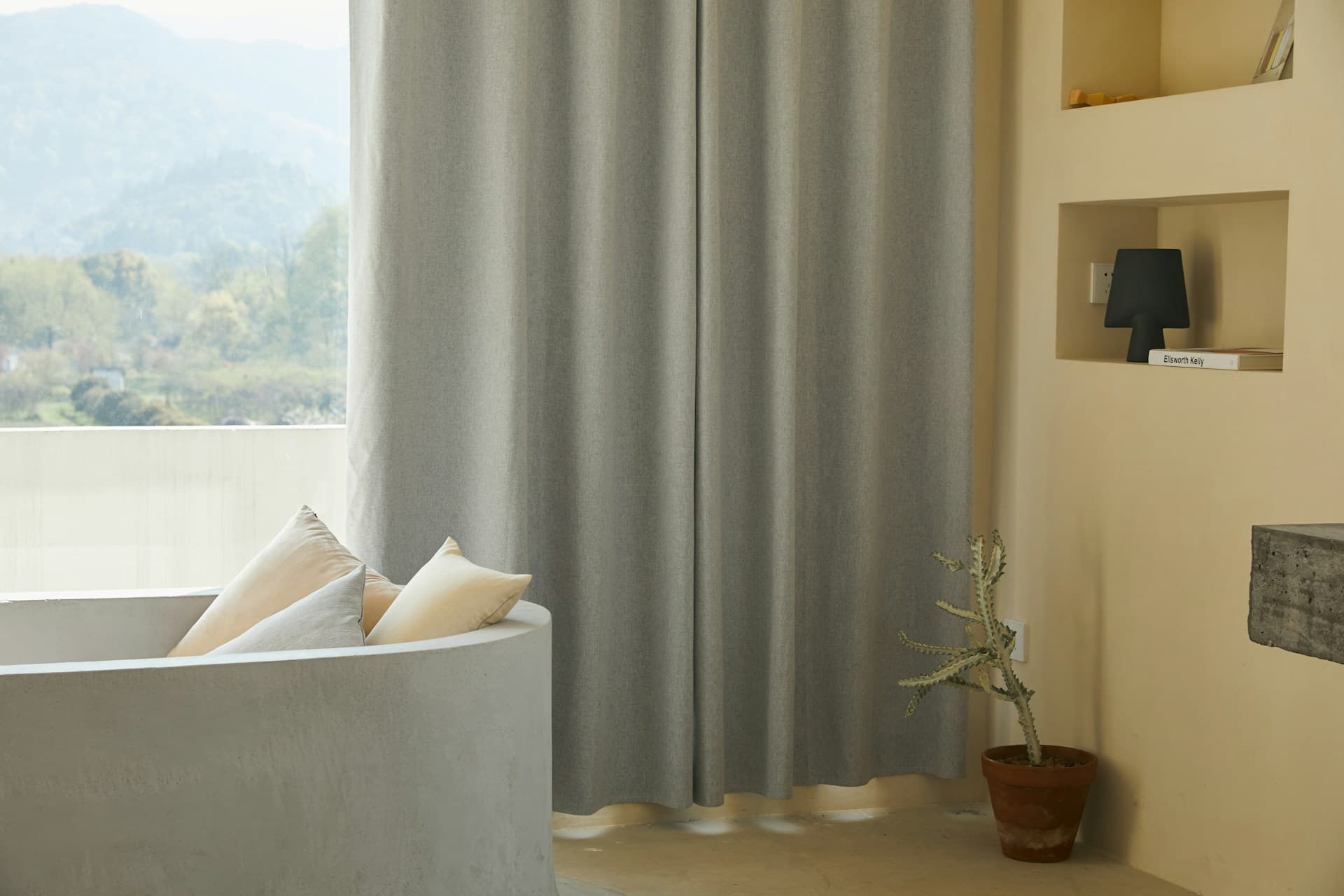
Smart Home
Your home in the palm of your hand.
Control motorized blinds and curtains with your smartphone. Compatible with Dooya Smart app and Google Home ecosystem.
Interactive Demo
Experience the control.
Tap the phone buttons to see blinds and curtains in action. Switch between devices to explore both animations.
Morgandy
Smart Home
Living Room
Blind Motor
Tap to open
Features
Everything you need.
Dooya motors offer complete smart control for your spaces.
Remote Control
Open and close blinds and curtains from anywhere with your smartphone.
Voice Control
Compatible with Google Home and voice assistants for hands-free control.
Scheduling
Schedule automatic opening and closing times for each room.
Scenes
Create scenes that combine multiple devices in a single action.
Solar Sensor
Light-based automation for energy efficiency and comfort.
Security
Simulate presence at home with programmed random movements while you travel.
Step by Step
How to set up.
Follow the tutorial to connect your motors to your smartphone in less than 10 minutes.
Setup with the Dooya Smart App
Follow these steps to connect your Dooya motor to your smartphone.
Download the Dooya App
Search for "Dooya Smart" on the App Store or Google Play and install the app on your smartphone.
Create an Account
Open the app and register with your email or phone number. Confirm your registration through the verification code.
Add the Motor
Tap "Add Device" and select the motor type (blind or curtain). Make sure the motor is in pairing mode (LED flashing).
Connect to Wi-Fi
Select your Wi-Fi network (2.4GHz) and enter the password. The app will automatically connect the motor to your home network.
Set the Limits
Set the fully open and fully closed positions of your blind or curtain. Use the fine adjustment buttons for precise calibration.
Ready to Use
Your motor is configured. You can now control, schedule times, and create automation scenes directly in the app.
Important Tips
- •Make sure you use a 2.4GHz Wi-Fi network (not 5GHz).
- •To put the motor in pairing mode, press the reset button for 5 seconds.
- •Limit calibration can be adjusted at any time in the device settings.
Compatibility
The Dooya motors available in our catalog are compatible with the main smart home ecosystems.
Dooya Smart
Native App
Google Home
Voice Assistant
Amazon Alexa
Voice Assistant
Apple HomeKit
Via Bridge
Ready to automate your space?
Explore our compatible motors or ask our technical team for advice.